Wolfram Function Repository
Instant-use add-on functions for the Wolfram Language
Function Repository Resource:
Make a button that evaluates a set of cells when clicked
ResourceFunction["CellEvaluationButton"][label,{obj1,obj2,…}] creates a button that is labeled with label, and evaluates the cell objects obji when clicked. | |
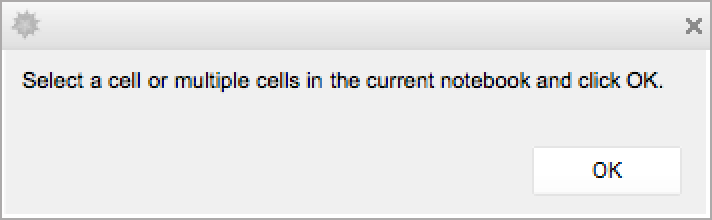
ResourceFunction["CellEvaluationButton"][label] prompts the user to select one or more cells. |
| AutoScroll | False | whether to scroll the first targeted cell into view when the button is clicked |
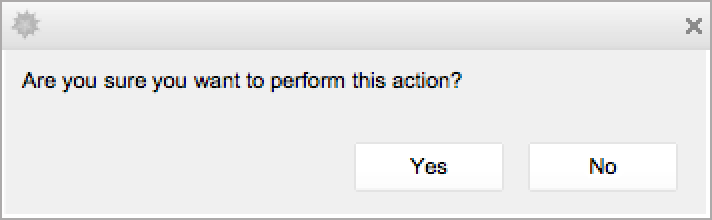
| "ConfirmationPrompt" | None | the text of a yes/no confirmation prompt displayed upon clicking the button, prior to evaluating the targeted cells |
| Method | "Queued" | the evaluation method to use |
Create a button that evaluates a selected cell or set of cells:
| In[1]:= | ![ResourceFunction["CellEvaluationButton"][]](https://www.wolframcloud.com/obj/resourcesystem/images/df4/df460bd7-89cf-4d8e-8d85-1b77d1ed5183/6446cae2a9541106.png) |
| Out[1]= |  |
Create a button that evaluates a set of cells specified with a list of CellObject expressions:
| In[2]:= | ![ResourceFunction[
"CellEvaluationButton"][{CellObject[1], CellObject[2], CellObject[3],
CellObject[4]}]](https://www.wolframcloud.com/obj/resourcesystem/images/df4/df460bd7-89cf-4d8e-8d85-1b77d1ed5183/74f3ef1be8dd9430.png) |
| Out[2]= |  |
Create a button that displays a confirmation prompt when clicked:
| In[3]:= | ![ResourceFunction["CellEvaluationButton"][
"ConfirmationPrompt" -> Automatic]](https://www.wolframcloud.com/obj/resourcesystem/images/df4/df460bd7-89cf-4d8e-8d85-1b77d1ed5183/040b3029ee30a96c.png) |
| Out[3]= |  |
Customize the appearance of the returned Button with the resource function RainbowText:
| In[4]:= | ![ResourceFunction["CellEvaluationButton"][
Nest[Framed, ResourceFunction["RainbowText"]["My Rainbow Button"], 2], Appearance -> None]](https://www.wolframcloud.com/obj/resourcesystem/images/df4/df460bd7-89cf-4d8e-8d85-1b77d1ed5183/6ce53f48f6ae8c4d.png) |
| Out[4]= |  |
This work is licensed under a Creative Commons Attribution 4.0 International License