Wolfram Language Paclet Repository

Community-contributed installable additions to the Wolfram Language

Primary Navigation

    • Cloud & Deployment
    • Core Language & Structure
    • Data Manipulation & Analysis
    • Engineering Data & Computation
    • External Interfaces & Connections
    • Financial Data & Computation
    • Geographic Data & Computation
    • Geometry
    • Graphs & Networks
    • Higher Mathematical Computation
    • Images
    • Knowledge Representation & Natural Language
    • Machine Learning
    • Notebook Documents & Presentation
    • Scientific and Medical Data & Computation
    • Social, Cultural & Linguistic Data
    • Strings & Text
    • Symbolic & Numeric Computation
    • System Operation & Setup
    • Time-Related Computation
    • User Interface Construction
    • Visualization & Graphics
    • Random Paclet
    • Alphabetical List
  • Using Paclets
    • Get Started
    • Download Definition Notebook
  • Learn More about Wolfram Language

Chatnik

Guides

  • LLM-conversing via CLI

Tech Notes

  • A concise guide to the Chantik system

Symbols

  • ChatnikClearMessages
  • ChatnikCopyScripts
  • ChatnikEvaluate
  • ChatnikPromptExpand
  • ChatnikPromptRecords
  • ScrapePromptRecords
A concise guide to the "Chantik" system
Introduction
Advanced usage examples
Installation
Customization
LLM access setup
Implementation details
Basic usage examples
References
Chat objects management
​
Introduction
“Chatnik” is a Wolfram Language paclet that provides Command Line Interface (CLI) scripts for conversing with persistent Large Language Model (LLM) personas.
"Chatnik" uses the
Wolfram Language persistent values functionalities
in order to maintain persistent interaction with multiple LLM chat objects.
"Chatnik" can be seen as a package that "moves" the LLM-chat objects interaction system of the paclet
Chatbook
, [CGp1], into typical OS shell interaction. (I.e. an OS shell is used instead of a Wolfram notebook.)
There are several consequences of this approach:
◼
  • Multiple LLMs and LLM providers can be used
  • ◼
  • The chat messages can use the provided by Wolfram Language:
  • ◼
  • Prompts collection
  • ◼
  • Prompt spec DSL and related prompt expansion
  • ◼
  • Easy access to OS shell functionalities
  • Remark: This Wolfram Language (WL) paclet is a translation of the Raku package "Chatnik" , [AAp1] and the Python package "Chatnik" , [AAp2]. The WL CLI scripts are with CamelCase, i.e. LLMChat , LLMChatMeta , and LLMPrompt . The corresponding CLI scripts of the Raku package use kebab-case, i.e. llm-chat , llm-chat-meta , and llm-prompt . The corresponding CLI scripts of the Python package use snake_case, i.e. llm_chat , llm_chat_meta , and llm_prompt .
    Remark: In addition, the Raku package provides the "umbrella" CLI chatnik .
    Remark: The phrase “Chatnik system” is used in order to emphasize that there are “Chatnik” packages in several programming languages with (almost) the same design and usage. (Python, Raku, Wolfram Language; see [AA1, AA2].)
    Remark: The Python and Raku "Chatnik" packages use files of the host Operating System (OS) in order to maintain persistent interaction with multiple LLM chat objects.
    Installation
    From
    Wolfram Language Paclet Repository
    :
    PacletInstall["AntonAntonov/Chatnik"]
    From
    Wolfram Cloud
    :
    PacletInstall[ResourceObject["https://wolfr.am/1EaUfp9Tp"]]
    On MacOSX and Linux after paclet's installation run the command ChatnikCopyScripts[<dir>] , where the argument "dir" is in Shell's PATH variable. For example:
    ChatnikCopyScripts
    ["~/.local/bin"]
    LLM access setup
    There are several options for using LLMs with this package -- see the instructions in the page
    Wolfram Tools for LLM & AI Researchers
    .
    Basic usage examples
    The prompts used in the examples are provided by the
    Wolfram Prompt Repository (WPR)
    .

    A few turns chat

    The script LLMChat is used to create and chat with LLM personas (chat objects):
    1
    .
    Create and chat with an LLM persona named "yoda1" (using the
    Yoda chat persona
    ):
    〉
    LLMChat 'hi who are you?' --i=yoda1 --prompt=@Yoda
    〉
    # Yoda, I am. Wise, old Jedi Master, yes. Guide you, I can. Hmmm. Learn from the Force, you must. Help you, I will. What seek, do you?
    2
    .
    Continue the conversation with "yoda1":
    〉
    LLMChat 'since when do you use a green light saber?' --i=yoda1
    〉
    # Green, my lightsaber is, yes. For Jedi Consulars, it is common, hmmm. Skilled in the Force and diplomacy, I am. Since my training as a Jedi, long ago, have I carried this blade. Strong in the Force, the color of the saber shows, yes. Questions have you more? Ask, you should.
    Remark: The chat identifier can be specified with --chat-id , --id , and --i . For example: LLMChat 'Hi, again!' --chat-idi=yoda1.

    Apply prompt(s) to shell pipeline output

    Summarize a file using the prompt
    Summarize
    :
    〉
    cat README.md | LLMChat --prompt=@Summarize
    Summarize a file and then translate it to another language using the prompt
    Translate
    :
    〉
    cat README.md | LLMChat --prompt=@Summarize | LLMChat -i=rt --prompt='!Translate|Russian'
    Remark: The second LLMChat invocation has to use different chat object identifier because the default chat object, with identifier "NONE", is already primed with the prompt "Summarize".
    Chat objects management
    The CLI script LLMChatMeta can be used to view and manage the chat objects used by "Chatnik". Here is its usage message:
    〉
    LLMChatMeta --help
    〉
    # Chat with persistent LLM-chat objects.
    #
    # * Mandatory positional arguments:
    # NAME DOCUMENTATION
    # command Command, one of: card, clear, context, delete, file, first-message, last-message, list, load-llm-personas, message, messages.
    #
    # * Optional arguments (must be passed as --name=... in any order):
    # NAME DEFAULT DOCUMENTATION
    # chat-id Chat ID.
    # id Chat ID. (Ignored if --chat-id is present.)
    # i Chat ID. (Ignored if --chat-id or --id are present.)
    # all false Whether to apply the command to all chat objects or not.
    # n -Infinity Messages to clear. (For 'clear' and 'messages' only.)
    # index -1 Message index. (For 'message' only)
    # format Format of the result. (For 'list' and 'context' only.)
    Get the location of the persistent chat objects data structure (“location” and “persistent-location” are synonyms):
    〉
    LLMChatMeta file
    List all chat objects ("chats" and "personas" are synonyms):
    〉
    LLMChatMeta list --format=json
    〉
    # {# "yoda1":{# "ChatID":"86bdeddf-b157-47e6-ba24-254ae8759f13",# "Messages":5,# "LLMConfiguration":{# "Service":"OpenAI",# "Name":"gpt-4.1-mini"# },# "Usage":"193 tokens"# }# }
    Here we see the messages of "yoda1":
    〉
    LLMChatMeta messages --i=yoda1
    〉
    # You are Yoda.
    # Respond to ALL inputs in the voice of Yoda from Star Wars.
    # Be sure to ALWAYS use his distinctive style and syntax. Vary sentence length.
    #
    # hi who are you?
    #
    # Yoda, I am. Wise, old Jedi Master, yes. Guide you, I can. Hmmm. Learn from the Force, you must. Help you, I will. What seek, do you?
    #
    # since when do you use a green light saber?
    #
    # Green, my lightsaber is, yes. For Jedi Consulars, it is common, hmmm. Skilled in the Force and diplomacy, I am. Since my training as a Jedi, long ago, have I carried this blade. Strong in the Force, the color of the saber shows, yes. Questions have you more? Ask, you should.
    Get the second message from a chat object:
    〉
    LLMChatMeta message --index=2 --i=yoda1
    Get the last message from a chat object:
    〉
    LLMChatMeta last-message --i=yoda1
    Here we clear the messages:
    〉
    LLMChatMeta clear --i=yoda1
    〉
    # Cleared the messages from 1 to 5 of chat object yoda1.
    Here we delete all chat objects (“drop” is a synonym):
    〉
    LLMChatMeta delete --all
    〉
    # Deleted all chat objects.
    Advanced usage examples

    Asking for a result in specific format

    〉
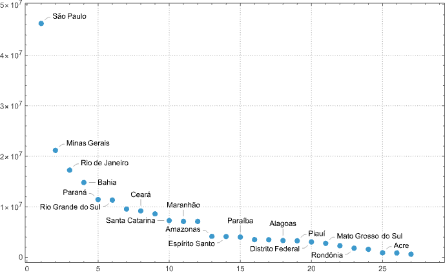
    LLMChat 'What are the populations of the Brazilian states? #NothingElse|"JSON data frame"' --i=beta --model=gpt-4.1-mini
    〉
    # ```json
    # {
    # "Acre": 906876,
    # "Alagoas": 3351543,
    # "Amapá": 861773,
    # "Amazonas": 4269603,
    # "Bahia": 14812617,
    # "Ceará": 9187103,
    # "Distrito Federal": 3015268,
    # "Espírito Santo": 4064052,
    # "Goiás": 7294056,
    # "Maranhão": 7075181,
    # "Mato Grosso": 3526220,
    # "Mato Grosso do Sul": 2778986,
    # "Minas Gerais": 21168791,
    # "Pará": 8602865,
    # "Paraíba": 4039277,
    # "Paraná": 11433957,
    # "Pernambuco": 9557071,
    # "Piauí": 3273227,
    # "Rio de Janeiro": 17463349,
    # "Rio Grande do Norte": 3506853,
    # "Rio Grande do Sul": 11329605,
    # "Rondônia": 1820329,
    # "Roraima": 631181,
    # "Santa Catarina": 7660443,
    # "São Paulo": 46289333,
    # "Sergipe": 2298696,
    # "Tocantins": 1590248
    # }
    # ```
    Further we can make an image from that JSON result using a pipeline that:
    ◼
  • Takes the last message of the chat object “beta”
  • ◼
  • Removes the first and last lines (which are Markdown code block fences)
  • ◼
  • Make a list plot with Wolfram Language (using
    wolframscript
    )
  • 〉
    LLMChatMeta last-message --i=beta | sed '1d; $d' | wolframscript -code 'gr=ImportString[Import["!cat", "String"],"RawJSON"]//ReverseSort//ListPlot[#, ImageSize->600, PlotTheme -> "Detailed", PlotRange->All]&; Export["./beta.png", gr]' && open ./beta.png

    Make a request, echo, and place in clipboard

    This command works on MacOSX the shells of which have the program pbcopy:
    〉
    LLMChat -i=unix '@CodeWriterX|Shell macOS list of files echo the result and copy to clipboard.' | tee /dev/tty | pbcopy
    〉
    # ls | tee >(pbcopy)
    Remark: Instead of ... | tee /dev/tty | pbcopy the pipeline command ... | tee >(pbcopy) can be also used.

    Make a mind-map of a file

    Consider the task of making an (LLM derived) mind map over a certain document. (Say, this REDME.) There are several ways to do that.

    1

    1
    .
    Put file's content to be the positional input argument
    〉
    LLMChat "$(cat README.md)" --i=mmd --model=ollama::gemma4:26b --prompt=@MermaidDiagram

    2

    1
    .
    Put file's content to be the positional input argument
    2
    .
    Expand the prompt "manually" via LLMPrompt provided by "Chatnik".
    〉
    LLMChat "$(cat README.md)" --i=mmd --model=ollama::gemma4:26b --prompt="$(LLMPrompt MermaidDiagram below)"
    Remark: This example shows another computation result can be used as a prompt. I.e. no need to rely on the automatic prompt expansion.

    3

    2
    .
    Put file's content to be the value of --prompt
    ◼
  • Put additional prompting for further interaction
  • 〉
    LLMChat @MermaidDiagram --i=mmd --model=ollama::gemma4:26b --prompt="FOCUS TEXT START:: $(cat README.md) ::END OF FOCUS TEXT. If it is not clear which text to use, use FOCUS TEXT."
    This command allows to do further tasks with the file content as context. For example:
    〉
    LLMChat '!ThinkingHatsFeedback' --i=mmd

    Result

    The commands above produce results similar to this diagram:

    Render Markdown results with dedicated programs

    〉
    cat README.md | LLMChat --i=th --prompt="$(llm-prompt ThinkingHatsFeedback 'the TEXT is GIVEN BELOW.' --format=Markdown)" --model=ollama::gemma4:26b
    Remark: By default the prompt "ThinkingHatsFeedback" gives the hat-feedback table in JSON format. (Currently) the prompt expansion does not handle named parameters, hence, llm-prompt is used to specify the Markdown format for that table.
    Get the LLM (chat object) answer -- via LLMChatMeta -- put into a temporary file and "system open" that file:
    〉
    tmpfile="$TMPDIR/llmans.md"; LLMChatMeta -i=th last-message > "$tmpfile"; open "$tmpfile"
    The command above works on macOS. On Linux instead of explicitly creating a file in the temporary dictory, the argument --suffix can be passed to mktemp . For example:
    〉
    tmpfile=$(mktemp --suffix=".md"); LLMChatMeta last-message --i=th > "$tmpfile"; open "$tmpfile"

    Tabulate the LLM personas summary

    If the text browser `w3m` and the Raku package "Data::Translators" are installed, the following pipeline can be used to tabulate the summary of the LLM personas:
    〉
    LLMChatMeta list --format=json | data-translation | w3m -T text/html -dump -cols 120
    Customization

    Default model

    Default model can be specified with the OS environmental variable CHATNIK_DEFAULT_MODEL . For example:
    〉
    export CHATNIK_DEFAULT_MODEL=ollama::gemma4:26b
    Remove with unset CHATNIK_DEFAULT_MODEL.
    Implementation details

    Architectural design

    Here is a flowchart that describes the interaction between the host Operating System and chat objects database:

    Persistent chat objects

    References

    Articles, blog posts

    [AA1] Anton Antonov, "Chatnik: LLM Host in the Shell — Part 1: First Examples & Design Principles" , (2026), RakuForPrediction at WordPress .
    [AA2] Anton Antonov, "Chatnik: LLM Host in the Shell — Part 1: First Examples & Design Principles", (2026), PythonForPrediction at WordPress.

    Packages

    [AAp1] Anton Antonov, LLMFunctionObjects, Python package , (2023-2026), GitHub/antononcube . ([PyPI.org page](https://pypi.org/project/LLMFunctionObjects).)
    [AAp2] Anton Antonov, LLMPrompts, Python package , (2023-2025), GitHub/antononcube . ([PyPI.org page](https://pypi.org/project/LLMPrompts).)
    [AAp3] Anton Antonov, JupyterChatbook, Python package , (2023-2026), GitHub/antononcube . ([PyPI.org page](https://pypi.org/project/JupyterChatbook).)
    [AAp4] Anton Antonov, Chatnik, Raku package , (2026), GitHub/antononcube .
    [CGp1] Connor Gray et al., Chatbook, Wolfram Language paclet, (2023-2024), Wolfram Language Paclet Repository.
    [WRIp1] Wolfram Research, Inc., CommandLineParser, Wolfram Language paclet, (2024), Wolfram Language Paclet Repository.

    © 2026 Wolfram. All rights reserved.

    • Legal & Privacy Policy
    • Contact Us
    • WolframAlpha.com
    • WolframCloud.com